Meta Lead Ads to HubSpot: Lead Ads Automation Without CSV (2026)


Table of Contents
- Introduction
- Why Is Manual CSV Export Still Breaking Meta Leads CRM Automation?
- What Are the Three Ways to Connect Facebook Leads to HubSpot or Pipedrive?
- How Do Meta Webhooks Work for Real-Time Lead Ads Automation?
- How Do You Build a Meta to CRM Flow in n8n Without Custom Code?
- Should You Use HubSpot Native Integration or a Custom Lead Ads Automation Stack?
- How Do You Map Fields and Deduplicate Leads Between Meta and Your CRM?
- How Do You Handle Consent and Compliance When Syncing Facebook Leads to HubSpot?
- What Error Handling Keeps Your Lead Pipeline From Silently Failing?
- What Should Marketing Ops Do Daily and Weekly to Keep Lead Ads Automation Healthy?
- Frequently Asked Questions (FAQs)
Introduction
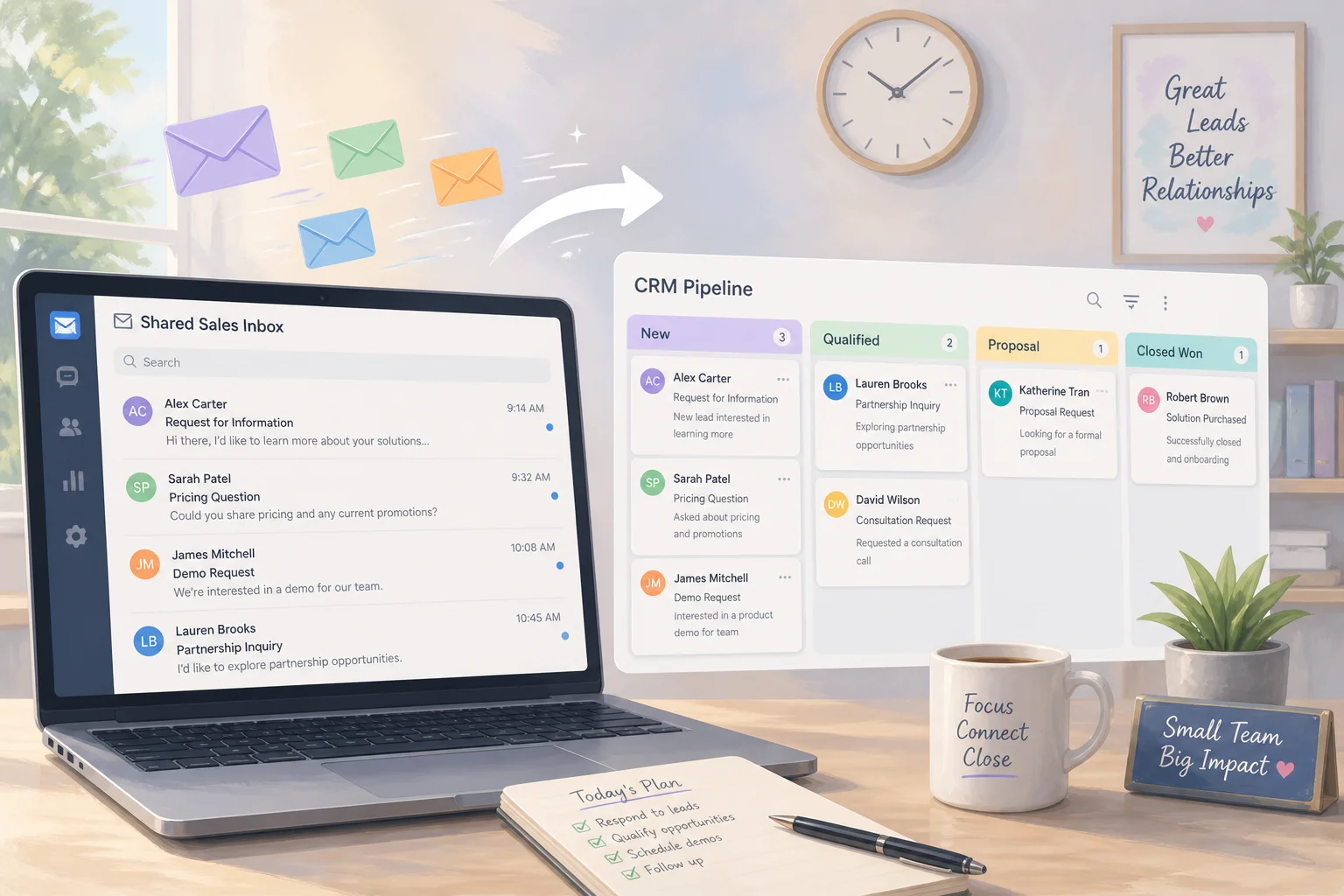
Most teams running Meta lead ads still follow the same painful loop: leads pile up in Facebook's interface, someone downloads a CSV, cleans columns by hand, and uploads the file into HubSpot or Pipedrive. By the time sales sees a record, hours or days have passed. Field names do not match. Campaign attribution is fuzzy. Consent flags vanish somewhere between export and import.
That manual copy-paste is the opposite of meta leads CRM automation. The fix is a continuous pipeline from ad form submission to CRM contact creation - usually within minutes - with field mapping, deduplication, and consent baked in from the start.
This guide covers the three architecture patterns (native CRM connectors, n8n workflows, custom webhooks), how Facebook leads to HubSpot and Pipedrive setups differ, and the daily and weekly routines marketing ops teams need so lead ads automation stays reliable after launch week.
Why Is Manual CSV Export Still Breaking Meta Leads CRM Automation?
Meta instant forms keep users inside Facebook or Instagram. When someone submits, Meta stores the lead on their side. Your default options are periodic CSV downloads or nothing. That creates four predictable failures.
First, response time. Research consistently shows that contacting a lead within minutes dramatically improves conversion. Manual export turns "minutes" into "whenever someone remembers to download the file."
Second, data quality. Wrong CSV, wrong column mapping, or a missed upload means sales works stale or incomplete records. Third, reporting splits. Marketing sees spend and leads in Ads Manager; sales sees a subset in the CRM; nobody trusts the funnel math. Fourth, compliance risk. Privacy policy links and marketing consent checkboxes often do not survive a hand export.
Automating the path from Meta lead ads into your CRM removes the bottleneck without requiring a full engineering project - if you pick the right integration pattern and maintain it like production infrastructure.
What Are the Three Ways to Connect Facebook Leads to HubSpot or Pipedrive?
There are three common patterns for lead ads automation. Most mature teams use one as the default and add another for edge cases.
Native CRM integrations are the fastest starting point. HubSpot's Ads tool connects directly to Meta ad accounts and pulls lead form submissions into contacts with campaign attribution. Pipedrive offers Meta lead ads integrations through its marketplace and partner connectors. You authenticate, select Pages and forms, map fields in a UI, and leads flow without middleware.
iPaaS and workflow tools (Zapier, Make, n8n) sit between Meta and your CRM. They excel when you need branching logic, multi-CRM routing, or transformations native connectors cannot express. n8n is especially useful for teams that want self-hosted control, versioned workflows, and JavaScript in Function nodes without maintaining a custom server.
Custom webhooks and middleware use Meta's Graph API directly. You run an HTTP endpoint Meta calls on each new lead, fetch full lead data via API, transform it, and write to HubSpot, Pipedrive, or both. This offers maximum flexibility but requires ongoing token management and monitoring.
| Pattern | Best for | Trade-off |
|---|---|---|
| Native (HubSpot/Pipedrive) | Single CRM, standard field mapping | Less custom logic |
| n8n / iPaaS | Multi-step routing, self-hosted option | Needs workflow maintenance |
| Custom webhooks | Complex compliance or multi-system fan-out | Highest build and ops cost |
If you are early stage with HubSpot only, start native. Add n8n when you need Pipedrive in parallel, custom dedup rules, or a dead-letter queue for failed leads.
How Do Meta Webhooks Work for Real-Time Lead Ads Automation?
Understanding webhooks helps even when you use n8n or a native connector, because the same events drive all real-time meta leads CRM automation.
Step 1: App subscription. You configure a Meta app and subscribe to the leadgen webhook for your Facebook Page(s). Meta sends a verification GET request to your callback URL; your endpoint must echo the challenge token. After verification, each form submission triggers a POST with metadata - not the full form answers.
A typical webhook payload includes page_id, leadgen_id, form_id, and a timestamp. Treat it as a notification, not the complete record.
Step 2: Fetch full lead data. Your handler takes leadgen_id and calls the Graph API:
GET https://graph.facebook.com/v21.0/{leadgen_id}?access_token={token}&fields=field_data,created_time,ad_id,campaign_id,adset_id,custom_disclaimer_responses
The response contains submitted answers plus ad-level attribution - critical for CRM source properties and ROI reporting.
Step 3: Transform and route. Normalize field names, parse consent checkboxes, apply deduplication rules, and decide whether to create or update HubSpot contacts, Pipedrive persons, or both.
Step 4: Write to CRM. Authenticated API calls create or update records, attach activities, and set source to something consistent like Meta Lead Ad. Failures should log, retry when transient, and land in a human-review queue when permanent.
This four-step loop is what n8n, Zapier, and custom services all implement under different UIs.
How Do You Build a Meta to CRM Flow in n8n Without Custom Code?
n8n is a practical middle ground for lead ads automation when native connectors are too rigid. A standard Meta to CRM workflow looks like this.
Ingestion. Start with a Webhook node set to POST. Register its URL in your Meta app as the leadgen callback. When Meta fires, the node captures leadgen_id.
Retrieval. An HTTP Request node calls the Graph API with your long-lived Page access token and requests field_data, campaign IDs, and disclaimer responses. A Function or Set node flattens Meta's array-shaped field_data into key-value pairs your CRM understands.
Mapping and consent. Map full_name to first/last name splits, phone_number to mobile, and custom questions to CRM properties. Read custom_disclaimer_responses for marketing opt-in. Example logic: if the promotional checkbox is unchecked, set HubSpot's email opt-out property before create.
Deduplication branch. Search HubSpot or Pipedrive by email (fallback: normalized phone). If found, update the contact and log a new activity or deal. If not found, create fresh.
Error path. Route failures to Slack, email, or a Google Sheet dead-letter tab with the raw payload. Retry 502/503 responses with backoff; do not retry "property does not exist" until someone fixes mapping.
One workflow can serve multiple Pages and forms. Branch on form_id when different campaigns need different lifecycle stages or owner assignment. Version workflows in git if you self-host n8n - marketing ops can iterate without losing rollback ability.
Should You Use HubSpot Native Integration or a Custom Lead Ads Automation Stack?
For many teams asking about Facebook leads to HubSpot, the native integration is enough. Connect your ad account in HubSpot Ads settings, enable lead form sync, map fields once, and contacts appear with campaign attribution for reporting.
Native HubSpot handles well: automatic contact creation, ad spend and lead reporting in one place, workflow triggers on new Meta leads, and field mapping through the UI without code.
Reach for n8n or webhooks when you need any of the following:
- Simultaneous HubSpot and Pipedrive writes from one form.
- Form-specific routing (enterprise leads to one pipeline, SMB to another).
- Custom deduplication beyond HubSpot's defaults.
- Archiving raw JSON for compliance audits.
- Enrichment steps (Clearbit, internal scoring) before CRM create.
Pipedrive teams often start with marketplace connectors (LeadsBridge, Outfunnel, or similar) for parity with HubSpot's native path. When connector limits appear - multi-object creates, complex branching - mirror the n8n pattern above with Pipedrive's Persons and Deals API nodes.
The decision is not "native vs custom forever." It is "native until complexity forces middleware, then middleware with ops discipline."
How Do You Map Fields and Deduplicate Leads Between Meta and Your CRM?
Bad field mapping is the silent killer of meta leads CRM automation. Meta form field names are advertiser-defined strings. CRM properties have internal names, types, and validation rules. A mismatch blocks creates or writes to the wrong column.
Mapping rules that work:
- Maintain a single source-of-truth spreadsheet: Meta question label, internal CRM property, data type, required yes/no.
- Split
full_namein a Function node if your CRM expects separate first and last fields. - Normalize phone numbers to E.164 before search or create.
- Store
ad_id,campaign_id, andform_idin dedicated properties for attribution - do not bury them in notes only.
Deduplication hierarchy:
- Email (primary for B2B and most B2C).
- Normalized phone when email is missing.
- Never match on name + city alone unless a human reviews merges.
When an existing contact submits again, update their record and create a new activity or deal representing the fresh inquiry. Sales should see each touch; marketing should not spawn duplicate contacts that break reporting.
Run a weekly dedup report in HubSpot or Pipedrive. If the same email created two records in seven days, your upsert logic needs tightening - not more manual CSV cleanup.
How Do You Handle Consent and Compliance When Syncing Facebook Leads to HubSpot?
Lead ads include privacy policy links and optional custom disclaimers. Your integration must preserve what the user actually selected - not just their email address.
Design forms with legal input: clear purpose statement, separate checkboxes where regulations require distinct consent for inquiry follow-up vs promotional email, and accurate policy URLs.
In the CRM, map consent answers to properties your email and SMS tools respect. Store timestamp, form ID, and source alongside the boolean flags. If a user declines marketing email, HubSpot subscription types and Pipedrive campaign flags must reflect that before any nurture sequence fires.
Multi-CRM setups need a single consent source of truth or synchronized opt-out state. A contact opted out in HubSpot should not receive outreach from a Pipedrive-connected dialer without a valid legal basis.
Document data flows for GDPR or CCPA subject requests. You need to know every system that holds Meta lead data - Meta itself, your CRM, n8n execution logs, and any dead-letter archive.
What Error Handling Keeps Your Lead Pipeline From Silently Failing?
Treat lead sync like a production job, not a one-time Zapier click.
Token management. Meta Page tokens and CRM OAuth refresh tokens expire or get revoked. Monitor auth failures and alert ops before leads silently stop flowing. Store credentials in n8n's credential vault or a secrets manager - never in workflow JSON committed to git.
Transient vs permanent errors. Retry timeouts and 5xx responses two or three times with backoff. Do not retry "invalid property" or schema errors until configuration is fixed.
Dead-letter storage. Park failed payloads in a Sheet, database table, or Slack channel with error text and leadgen_id. Ops can replay after fixing mapping without asking the lead to resubmit.
Monitoring basics. Daily count comparison: Meta leads yesterday vs CRM records tagged Meta. Alert when error rate spikes or a live campaign reports zero CRM creates for 24 hours.
Silent failure is worse than loud failure. A CSV habit at least produces a file someone notices. A broken webhook produces nothing until sales complains leads dried up.
What Should Marketing Ops Do Daily and Weekly to Keep Lead Ads Automation Healthy?
Automated pipelines need light, consistent care. These checklists keep lead ads automation from becoming a black box.
Things To Do Daily
Spend 15-20 minutes each business day:
- Compare lead volumes. Match Meta Ads Manager lead count for yesterday against new CRM contacts tagged Meta Lead Ad. Small timing gaps are normal; large gaps mean investigate now.
- Spot-check three to five records. Confirm email, phone, name, campaign ID, and source properties populated correctly. Consent fields visible?
- Review error logs. Check n8n execution failures, dead-letter sheet entries, or connector error inboxes. New error type? Fix mapping before volume scales.
- Confirm sales visibility. Verify routing rules still land leads in the right owner queue or pipeline stage.
- Watch for new forms. Marketers launch forms without telling ops. Unmapped new fields are the top cause of sudden sync stops.
Things To Do Weekly
Invest 30-45 minutes once a week:
- Schema and mapping audit. Remove unused Meta form fields. Confirm every collected field maps to a CRM property someone actually uses. Did anyone rename a HubSpot property?
- Deduplication hygiene. Run duplicate contact report for the past seven days. Adjust upsert logic if patterns repeat.
- Consent sample audit. Compare five random contacts to original Meta submissions. Flags match selections?
- Time-to-lead metric. Measure median minutes from Meta
created_timeto CRM record timestamp. Drift upward? Check rate limits or workflow backlog. - Campaign alignment meeting. Ask media buyers about upcoming forms, new markets, or fields needed for segmentation. Update workflows before campaigns go live.
Document who owns daily vs weekly checks. Rotate responsibility so one person's vacation does not pause monitoring.
Frequently asked questions
Quick answers on the topics covered in this article.
Enable HubSpot's native Meta ads integration: connect your ad account in Settings > Marketing > Ads, select lead forms to sync, and map fields to contact properties. Leads create contacts automatically with campaign attribution. For custom logic, add an n8n workflow using Meta webhooks and HubSpot API nodes.
Start with a Pipedrive marketplace connector (LeadsBridge, Outfunnel, or similar) for direct Meta-to-Pipedrive sync. When you need branching, deduplication, or dual writes to HubSpot and Pipedrive, use n8n with Meta webhook trigger, Graph API fetch, and Pipedrive Persons/Deals nodes.
No. Webhook POST payloads are notifications containing leadgen_id and metadata. You must call the Graph API with that ID to retrieve field_data, campaign IDs, and consent responses before writing to your CRM.
Yes. One n8n workflow can process all forms on a Page. Use Switch or IF nodes on form_id to apply different field mappings, lifecycle stages, or owner assignments per campaign without separate workflows.
Search by email first, then normalized phone. If a match exists, update the contact and log a new activity or deal for the fresh submission instead of creating a duplicate record. Avoid fuzzy matching on name alone.
At minimum: email, phone, first name, last name, lead source, campaign name or ID, form ID, and consent opt-in flags. Store ad and ad set IDs in dedicated properties for attribution reporting rather than free-text notes only.
Common causes: wrong Page or form selected in sync settings, expired Meta token, unmapped required HubSpot property causing silent reject, or form created after setup without adding it to the sync list. Check HubSpot ads connection health and compare yesterday's Meta lead count to HubSpot creates.
Map custom disclaimer and checkbox responses from the Graph API custom_disclaimer_responses field to CRM subscription or opt-in properties. Include submission timestamp and form ID. Honor opt-outs in email tools before any automated nurture enrolls the contact.
Log the raw payload and error in a dead-letter queue (Sheet, database, or Slack). Fix mapping or auth, then replay manually via API or n8n. Never rely on re-exporting CSV as the permanent fix - that reintroduces delay and data loss.
Native integration is enough for single-CRM, straightforward mapping, and standard reporting. Add n8n when you need multi-CRM routing, custom deduplication, enrichment before create, compliance archiving, or form-specific branching HubSpot's connector cannot express.
Share this article
Related workflows
Daily Validated Business Ideas using n8n and Upwork
Deep Research using n8n automation to generate report using Tavily